Notes of Git
Basic Settings
git config --global user.name "kvn"
git config --global user.email username@email.com
git config --global core.autocrlf input # for MacOS
Appending Operations
- Showing files in the staging area by
git ls-files - Storing files that are
git add. - Modified files will have to be
git addagain
If git status gives green info, it means it's all the same for Working Directory and Staging Area. If it says committed, then Repository too.
Skip Staging:
use git commit -am "info" for adding
use git rm filename1... for deleting
use git mv file file1 for renaming or moving
Only do this when you know what you are doing
Ignoring Files
Files like logs usually shouldn't be tracked.
use .gitignore file to book files unneeded in the following form:
logs/
main.log
*.log
If files are already in repo, adding them to .gitignore file is not going to let git ignore them. To solve this, we use git rm --cached dir_dont_want_to_track to only remove it from the staging area(may have to use -r to recursively rm).
Viewing Operation
Simple View
use git status -s for simplified info.
M for modified; A for added.
See Diff
use git diff --staged to compare files changed between the last committed and currently staged.
use git diff to compare files changed between the currently staged and working directory.
Diff Tool
Set up:
git config --global diff.tool vscode
git config --global difftool.vscode.cmd "code --wait --diff $LOCAL $REMOTE"
check by:
git config --global -e
History
use git log to see history.
Options:
-
--oneline: simplified output, ID & comment -
--reverse: presented in the way of bottom up
use git show ID or git show HEAD~step_before to see the diff of the commits
use git show ID:file to see the file of the commit ID
use git ls-tree ID to list all files with their unique_id of version ID
use git show unique_id to see blob or tree by their unique_id
Restoring Files
use git restore --staged file to restore files from staging area to the working directory
-
when restoring modified files, git uses copies from the repo to replace files in the staging area.
-
when restoring added files, git reverts the stage of files back to untracked
use git restore file to restore files from the working directory to the previous version
- when restoring modified files, git replaces them with the latest copies from the repo
- git doesn't restore untracked files, if no Options like
-fdare given, the move is considered dangerous and will not process.
use git restore --source=HEAD~1 file to restore files to the version ID
Remote
use git remote add name url to add new remote repo
use git pull to directly pull the repo to the working directory(space)
use git fetch to fetch the repo to the local repo
use git push to push the local repo to the remote
Branches
Basics
use git branch name to create a new branch from the current branch
use git branch switch name to switch HEAD to branch name
Merge or Rebase
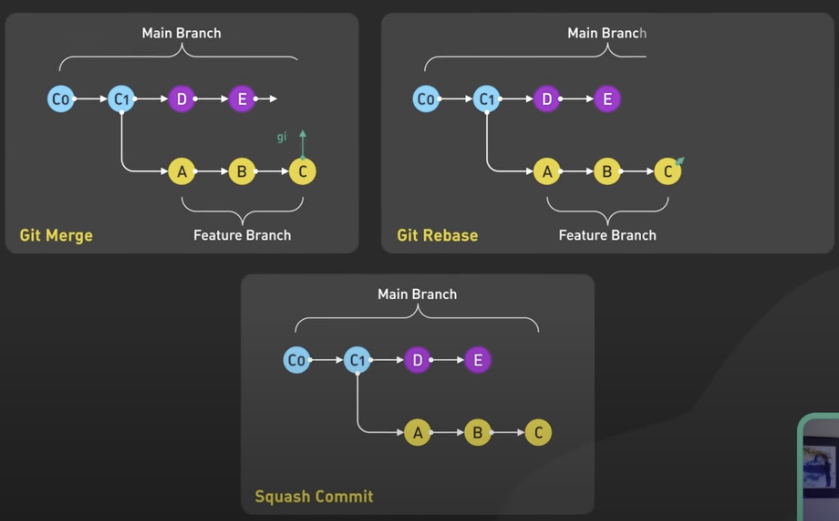
The following graph presents 3 different ways of merging branches.
 {:height="400px" width="auto"}
use git merge feature to merge the feature branch to the master when HEAD -> master
use git rebase feature to merge the branch in terms of rebase to the master
Dealing Conflicts
when two branches change the same line of the same file and attend to merge, one has to decide which version to stay.